How to Send Apple Wallet Pass Notifications with a Custom Message
Apple Wallet has no send-message API: a lock-screen banner appears when a pass field changes. Send any custom message with changeMessage and one PUT, and see how APNs and Google Wallet messages work underneath.
An Apple Wallet pass shows a lock-screen notification when one of its fields
changes value and that field carries a changeMessage. There is no separate
endpoint for sending a message, so to send any text you want, you change a field
whose value is the text.
With WalletWallet that is two requests: create the pass with a message field
once, then PUT a new message whenever you want a banner. Both wallets are
handled, and you never touch APNs or Google’s API.
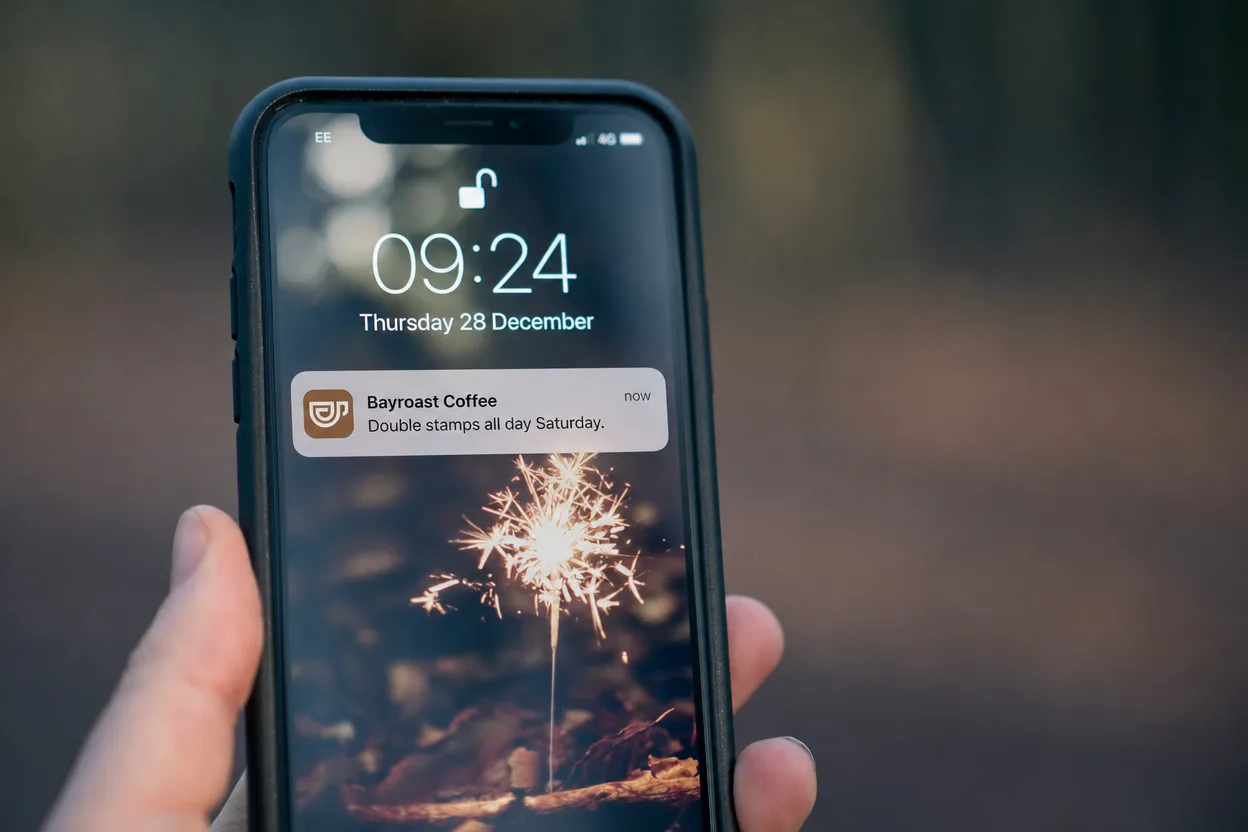
Send a custom message in two requests
Create the pass with a back field reserved for messages. Its changeMessage is
"%@", so the banner shows the field’s new value exactly as written.
curl -X POST https://api.walletwallet.dev/api/passes \
  -H "Authorization: Bearer ww_live_<your_key>" \
  -H "Content-Type: application/json" \
  -d '{
    "organizationName": "Bayroast Coffee",
    "logoText": "Bayroast Coffee",
    "primaryFields": [
      { "label": "Stamps", "value": "3 / 8", "changeMessage": "You have %@ stamps" }
    ],
    "backFields": [
      { "label": "Messages", "value": " ", "changeMessage": "%@" }
    ],
    "barcodeValue": "BR-0412",
    "barcodeFormat": "QR"
  }'
The response returns a serialNumber. To send a message, PUT the same pass with
the message as the field’s new value:
curl -X PUT https://api.walletwallet.dev/api/passes/<serial> \
  -H "Authorization: Bearer ww_live_<your_key>" \
  -H "Content-Type: application/json" \
  -d '{
    "organizationName": "Bayroast Coffee",
    "logoText": "Bayroast Coffee",
    "primaryFields": [
      { "label": "Stamps", "value": "3 / 8", "changeMessage": "You have %@ stamps" }
    ],
    "backFields": [
      { "label": "Messages", "value": "Double stamps all day Saturday.", "changeMessage": "%@" }
    ],
    "barcodeValue": "BR-0412",
    "barcodeFormat": "QR"
  }'
Every iPhone with the pass installed shows “Double stamps all day Saturday.” on
the lock screen, under the name in organizationName. PUT replaces the whole
pass, so send every field each time, not only the one that changed.
How Apple decides to show a notification
Apple’s field reference
defines changeMessage as “a format string for the alert text to display when
the pass updates”, and sets three rules:
- The field needs a
changeMessage. “You need to provide a value for the system to show a change notification.” A changed field without one updates silently. - The format string needs
%@, which iOS replaces with the field’s new value."Gate changed to %@"becomes “Gate changed to B12”. - The value has to change. iOS compares the new pass with the one on the device and notifies for fields whose value differs.
That gives you two patterns:
- Templated banners on real fields. Put the
changeMessageon the field that changes:"You have %@ stamps"on a stamp count,"Now at %@"on a gate,"Your balance is %@"on a balance. Updating the count is the notification. - Free-form messages on an anchor field. A back field whose only job is to
carry messages, with
changeMessage: "%@", as in the example above. Any text you put invaluebecomes the banner.
Change one notifying field per update when you want one clear banner.
Rules for the message field
- Seed it when you create the pass. The field has to exist on the pass
before an update can change it. If the first
PUTintroduces the field, iOS sees a new field rather than a changed value, and that first message is silent. - Keep
backFieldsin the same order. WalletWallet identifies fields by their position in the array, so moving the message field re-keys it and the banner stops firing. - Vary the text. Sending the same message twice is not a change, so the
second one shows nothing. An identical request body returns
{ "unchanged": true }, fires no push, and doesn’t count against your quota. - Keep it short. The lock screen shows a few lines; put detail in the pass itself, where the message also stays readable on the back of the card.
The same anchor works from the Pass Manager without code: open the pass, type the new message into the field, and save.
What happens underneath on Apple
If you run passes on your own infrastructure, this is the chain that a
WalletWallet PUT performs for you. Apple documents it under
updating a pass.
- The pass declares a web service.
pass.jsoncarrieswebServiceURLand anauthenticationToken. Without both, the pass can never update. - The device registers. When someone adds the pass, the device sends
POST /v1/devices/{deviceLibraryIdentifier}/registrations/{passTypeIdentifier}/{serialNumber}with its push token, authenticated withAuthorization: ApplePass <token>. - You push. When the pass changes, send an APNs notification to each
registered push token. The payload is an empty JSON object,
{}. - The device asks what changed. It calls
GET /v1/devices/{deviceLibraryIdentifier}/registrations/{passTypeIdentifier}?passesUpdatedSince={tag}, and you return the serial numbers updated since that tag plus a new tag. - The device downloads the pass. It calls
GET /v1/passes/{passTypeIdentifier}/{serialNumber}and receives the new signed.pkpass. iOS compares field values and shows a banner for each changed field with achangeMessage.
The APNs request has details that trip up most first implementations:
- Authentication: token-based, with a
.p8key from your Apple Developer account signing an ES256 JWT whosekidis the key ID andissis your team ID. - Topic:
apns-topicis the pass type identifier (pass.com.example.loyalty), not an app bundle ID. - Host: pass pushes go to the production host,
api.push.apple.com. - Content: the new
.pkpassmust actually differ in a field value, or the device downloads it and shows nothing.
When passes don’t update, the cause is usually one of those, or the step 4
endpoint returning no serials because the passesUpdatedSince tag isn’t compared
correctly.
Google Wallet
Google Wallet notifies through messages. Adding a message to a pass with the TEXT_AND_NOTIFY type pushes a notification to
everyone who saved it, and the message appears in the pass details. Google allows
3 notifying messages per pass in 24 hours
and returns a quota error past that.
On every PUT, WalletWallet updates the Google pass and adds a message with
TEXT_AND_NOTIFY. The Android notification reads “title was updated”, and
the new content, including your message field, shows inside the pass. Past
Google’s daily limit, we resend the same message as a silent TEXT message, so
the pass still updates without a notification.
Sending well
- Tie each message to the pass. A stamp, a reward, a changed time, or an offer for the holder of that card reads as service. A general promotion reads as spam, and holders can switch notifications off per pass on the back of the card.
- Plan for Google’s cap. Three notifications per pass per day is the ceiling on Android, so batch related changes into one update.
- Say who it’s from.
organizationNameis the banner title, so set it to the business the holder knows.
FAQ
Can I send an Apple Wallet notification without changing the pass?
No. Wallet has no message endpoint; a notification is always the result of a changed field. The message field above is the standard way to send any text.
Why didn’t my notification show?
Check, in order: the field has a changeMessage containing %@; the field
existed on the pass before this update; its value differs from the last update;
backFields kept its order; and the holder hasn’t turned off notifications for
the pass.
How fast does it arrive?
Devices get the push within seconds of the PUT, then download the new pass.
A phone that is off or offline updates when it reconnects.
Does every message count against my plan?
Each PUT that changes the pass counts as one pass on your plan, on both wallets
together. An identical body is free and sends nothing.
Can I customize the notification on Android?
Google’s notification text is generic. Your message shows inside the pass, in the details view.
To send your first message, create an account, issue a pass with a
message field, and PUT a new value. The full request reference is in the
docs. For the fields on the pass itself, see the
anatomy of an Apple Wallet pass.
Build, distribute, and notify in under five minutes
Design your passes, hand them out, and send push notifications to Apple Wallet and Google Wallet. By API, from the dashboard, or through an AI assistant.